If you’ve been developing for Microsoft Dynamics NAV or Business Central for a while, you’ve watched the workflow change a lot. Setting up a new environment used to mean installing SQL Server, configuring IIS, creating BC server instances, managing Windows services, and hoping nothing collided with what was already on the machine. Back then, that was just part of being a NAV developer. Nobody really questioned it. It was how everyone worked.
With Docker, you run one PowerShell script and have a complete, working BC environment in minutes. When you’re done, you remove it. No leftover config, no port conflicts, no mess.
If you started with Business Central SaaS, Docker might look unnecessary. Microsoft already gives you sandbox environments, so why add anything? Because they solve different problems. A SaaS sandbox is the right place for UAT, collaboration, and cloud validation. Docker gives you a personal, isolated workspace you control: run the exact BC version you need, experiment freely, automate tests without touching anyone else’s setup.
To me, Docker feels like the modern replacement for dedicated dev machines and VMs, only much lighter and faster to spin up.
This isn’t an installation guide. It’s about why Docker for Business Central developers has become a core skill for BC developers, what it actually solves, where it fits alongside SaaS, and where it doesn’t.
Who This Is For
- NAV and on-prem BC developers still juggling multiple installations or VMs.
- SaaS-first BC developers running into shared sandbox limits or noisy environments.
Understanding Docker for Business Central Developers
Search “What is Docker?” and you’ll get something like:
“Docker is a platform that packages applications and their dependencies into lightweight, portable containers.”
It’s accurate, but not useful if you’re a BC developer. Here’s a more practical way to think about it: Docker lets you create a controlled, repeatable BC development environment whenever you need one.
Instead of manually installing BC, configuring SQL Server, creating service instances, and managing IIS, you spin up a ready-to-use BC environment from Microsoft’s published artifacts. BCContainerHelper (a free PowerShell module built specifically for BC) handles most of the complexity. Create a container, publish extensions, debug code, run tests. No manual setup, no leftover configuration.
The key idea is isolation. Each container is its own independent BC environment, with its own database, BC Server instance, configuration, and installed apps. Changes inside one container don’t touch anything else on the machine. You can run BC 26, BC 27, and a preview build simultaneously, fully isolated, no conflicts.
Your tools don’t change. You still use VS Code, write AL code, publish apps, run debug sessions, and execute tests exactly as before. What changes is the environment around your work. It’s faster to create, easier to reproduce, and simpler to maintain.
SaaS gives you a cloud environment for collaboration and validation. Docker gives you a developer-controlled workspace for building and experimenting.
How BC Development Got Here
Every major shift in the Dynamics ecosystem solved one set of problems and introduced another. Docker is just the latest step.
The NAV Days
If you supported multiple NAV versions, you know what that looked like. NAV 2013 for one customer, NAV 2016 for another, each needing its own SQL Server database, NAV Server instance, IIS website, Windows service, and port assignments. Development machines ended up with service lists like this:
MicrosoftDynamicsNavServer$NAV2016
MicrosoftDynamicsNavServer$NAV2017
MicrosoftDynamicsNavServer$CustomerA
Over time, everything piled up: services, databases, certificates, config files, all layered on the same machine. Remembering which port belonged to which version, or which database matched which service tier, became part of the job. Setting up a new environment could eat an entire afternoon. If something broke, you were digging through IIS settings, SQL permissions, and Windows services. Sometimes it was faster to start from scratch.
VMs Helped, But Added Their Own Problems
Many teams moved to VMs to avoid installation collisions. Each customer or project got its own isolated machine. That worked, but VMs consumed serious disk and memory. Startup took several minutes. Maintaining a fleet meant applying Windows updates, managing backups, and allocating storage before writing a single line of C/AL code. Developers were spending real time managing machines instead of building solutions.
Business Central SaaS Changed the Baseline
When BC moved to the cloud, Microsoft took over the infrastructure. Server management, updates, SQL maintenance, environment health: all gone from the developer’s plate. For developers new to BC, creating an environment became as simple as opening a sandbox. That was a real improvement.
But shared sandboxes introduced a different problem. Multiple developers working in the same environment means changes overlap, versions aren’t always under your control, and you can’t always isolate your work from everyone else’s. The infrastructure problem went away. The environment management problem didn’t.
Environments You Create and Throw Away
Docker changed the mental model. You don’t maintain a permanent BC installation anymore. You create one when you need it, use it, and delete it when you’re done.
Need to test on BC 26? Spin up a container. Need to reproduce an issue on a BC 28 Preview build? Spin up another one. Done? Delete it. The environment takes minutes to create and leaves nothing behind when you remove it. That’s the shift from environments you protect and maintain to environments you create on demand.
Life Before Docker
I still remember running multiple Dynamics NAV versions on my development machine. Every customer was on a different version. Every environment had its own configuration. Keeping track of which server instance or port belonged to which customer became its own skill. VMs helped with isolation, but they brought overhead: disk space, memory, Windows updates, and several minutes of startup time before any real work could happen.
We spent a surprising amount of time maintaining environments instead of building things. At the time, that felt normal. It was just part of being a NAV or BC on-premises developer. Docker made it clear how much time we were burning.
| Before Docker | With Docker |
|---|---|
| Manually install BC, SQL Server, IIS, and Windows services | One PowerShell command spins up a ready-to-use container |
| Maintain multiple server instances or VMs per customer | Run multiple isolated containers side by side |
| Manage databases, services, ports, and certificates by hand | Environment is configured automatically |
| Restore backups or clone VMs for clean testing | Recreate a fresh container in minutes |
| Spend time maintaining environments | Spend time writing BC solutions |
For developers who came up through the NAV years, Docker removed work that had always felt unavoidable. If you started with SaaS, most of that pain is unfamiliar, and that’s a good thing. Microsoft handles all of it for you in the cloud. Docker brings that same simplicity to your local environment, giving you a personal workspace that sits alongside the shared sandboxes Microsoft provides.
Docker vs SaaS Sandbox: Why Bother When You Already Have One?
“I already have a SaaS sandbox. Why bother with Docker?”
Fair question. You can publish extensions, debug code, and test changes in a SaaS sandbox without ever touching SQL Server or IIS. So what does Docker actually add? They’re built for different purposes.
A SaaS sandbox mirrors production. It’s where you validate new functionality, run UAT, demonstrate features to business users, and verify cloud integrations. But shared environments have real limits once projects get busy.
Picture this: you’re working on a feature with several database schema changes. Another developer is testing a bug fix. A third needs the same sandbox to validate a UAT release. All three are legitimate, but none of them can work freely without bumping into each other.
Docker fixes that. Every developer gets their own isolated BC environment. Publish extensions, restart services, test upgrades, change configuration: none of it touches anyone else. You also control exactly which BC version, cumulative update, localization, and artifacts you’re running. Need to reproduce a customer issue on an older release? Spin up a container. It’s faster than trying to adapt a shared sandbox.
Most experienced BC developers use both: build and debug locally in Docker, then publish to a SaaS sandbox for integration testing, user validation, and final sign-off.
Where Docker Makes a Real Difference
Docker doesn’t change how you write AL code. What it changes is everything around the code: less time managing infrastructure, more time solving business problems.
Faster setup. Getting a new BC environment running is one PowerShell script. New laptop, new project, quick test environment: minutes, not an afternoon.
Multiple BC versions, no conflicts. In consulting and ISV work, supporting customers on different BC versions is common. Each version gets its own container. Run BC 26 and BC 28 side by side without anything colliding.
Same environment for every developer. “Works on my machine” is a real problem on BC teams. With Docker, everyone creates the same environment from the same configuration. Onboarding and collaborative debugging get much simpler when you’re starting from an identical foundation.
Experiment without consequences. Testing preview artifacts, trying new libraries, making significant schema changes: all risky in a shared environment, safe in Docker. If it breaks, delete the container and start over. Nothing else is affected.
Upgrade testing on demand. Create containers for both the current and target BC version, publish your extension to each, compare behavior. When you’re done, remove them. No permanent environments to maintain afterward.
Ready for automation. The same scripts that build your local Docker environment can drive automated build pipelines: compiling extensions, running tests, validating deployments. Even if CI/CD isn’t on your radar today, Docker prepares you for workflows that are standard on most BC teams now.
| Benefit | What It Means in Practice |
|---|---|
| Faster environment setup | Minutes to create, not hours to configure |
| Multiple BC versions | Support different customers without conflicts |
| Consistent environments | Eliminate “works on my machine” issues |
| Safe experimentation | Test freely without affecting your main setup |
| Easier upgrade testing | Validate extensions across versions with minimal effort |
| Better automation | Same environment locally and in CI/CD pipelines |
| Less maintenance | More time building solutions |
When Docker Actually Helps
Starting fresh. Environments accumulate changes: extensions get installed, configuration drifts, test data builds up. At some point you’re not sure if the issue is in your code or in something that quietly changed in the environment. Spin up a new container and start from a known state.
Multiple projects at once. Many BC developers support several customers simultaneously, each with different apps, BC versions, and configurations. Give each project its own container. Switch between them without carrying anything over.
Reproducing a customer issue. You have the error, you have the code, but it doesn’t happen in your environment. Often the difference is the environment itself. Docker lets you control the conditions you need to reproduce what the customer is seeing.
Preparing for new BC releases. Pull the new artifact early, publish your extension, catch compilation issues and breaking changes before anything reaches the customer’s sandbox. Docker handles the technical validation up front; SaaS handles business validation later.
Learning and experimenting. Want to test a preview feature or a new platform capability? Create a temporary container, explore freely, delete it when you’re done. It’s much easier to experiment when the environment is disposable.
Automated testing and CI/CD. Docker fits naturally into Azure DevOps, GitHub Actions, or similar pipelines:
Create environment -> Build app -> Run tests -> Publish results -> Remove environment
Onboarding new developers. Instead of days spent manually configuring a machine, new team members create a standardized environment from the same script everyone else uses. Day one looks the same for everyone.
The Real Limitation: Customer Data
Docker doesn’t give you access to your customer’s SaaS database. That’s not a Docker shortcoming. It’s intentional. Customer databases live in Microsoft’s cloud infrastructure. There’s no direct SQL access to export and restore them into a local container. That design protects customer data, maintains security, and supports BC’s multi-tenant model.
So what do you do when a customer reports an issue that only happens with their data?
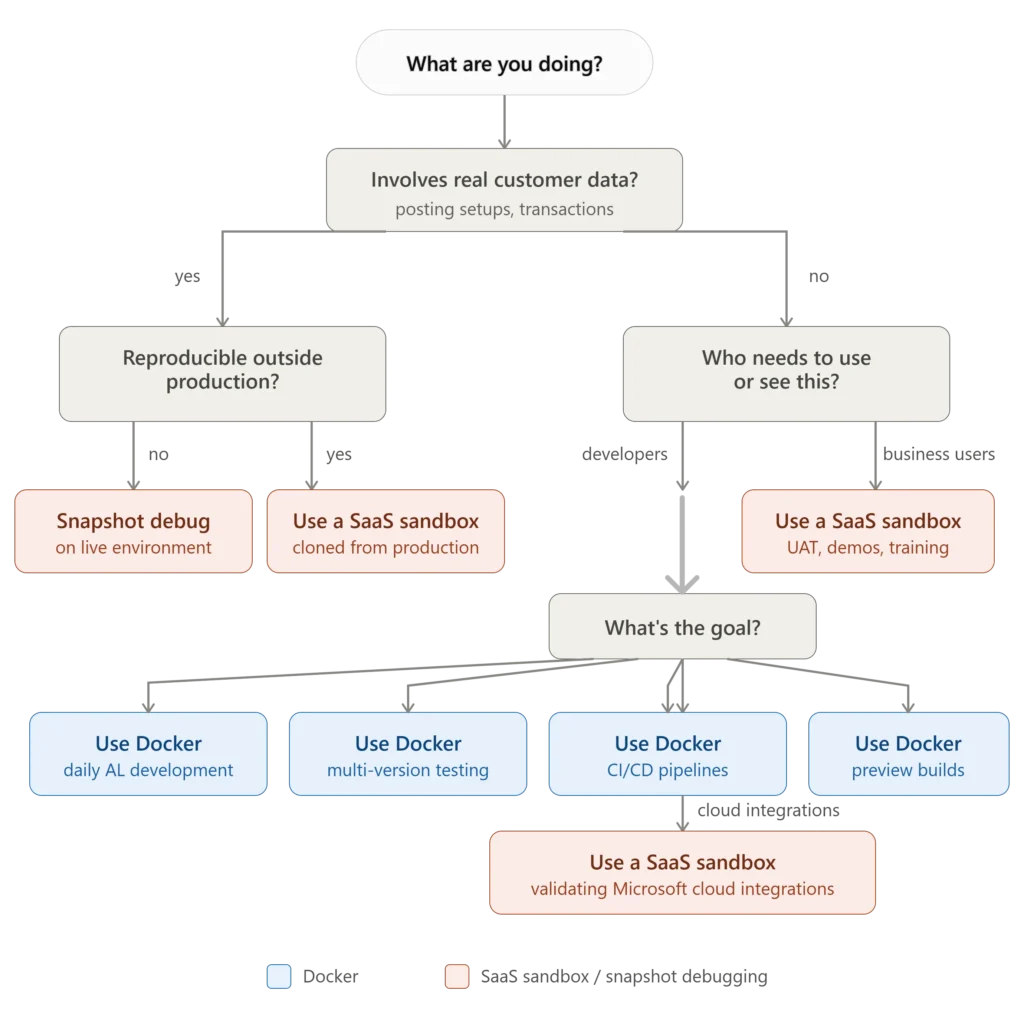
If it depends on customer-specific data, like specific posting setups, historical transactions, custom dimensions, or integration records, use a SaaS sandbox. Create one based on production, connect VS Code to it, and debug using the actual customer environment.
If the issue only happens in production and can’t be reproduced elsewhere, BC’s snapshot debugging captures execution details without attaching a live debugger to the customer’s environment. A user reproduces the issue, the snapshot is captured, and you analyze the execution flow after the fact.
For day-to-day development, the better long-term approach is building a representative dataset: sample master data, typical transactions, required configurations. You’re not trying to copy the customer’s database. You’re recreating the business conditions you need to build and test your solution. Many teams build reusable datasets that load into any container on demand.
For on-premises BC customers, the situation is different. The database is managed by the customer or partner, which means restoring a backup into a local Docker container is often practical. This is one area where Docker is especially useful for on-premises support.
| SaaS Sandbox Gives You | Docker Gives You |
|---|---|
| Real customer data | A clean, repeatable workspace |
| Real business processes | Full developer control |
| Real integrations | Fast environment creation |
| Business validation | Safe experimentation |
Picking the Right Tool
The question isn’t which is better. It’s which one fits the work you’re doing right now.
| Scenario | Docker Container | SaaS Sandbox |
|---|---|---|
| Daily AL development | ✅ Excellent — personal, isolated, no impact on others | ✅ Works, but shared environments create coordination overhead |
| Debugging your extension | ✅ Excellent — easy to reproduce, reset, and experiment | ✅ Better when the issue depends on customer-specific data |
| Customer production issue | ⚠️ Limited — no access to real SaaS customer data | ✅ Better choice for realistic customer scenarios |
| User Acceptance Testing | ❌ Not ideal — designed for developers, not business users | ✅ Best choice for business validation and sign-off |
| Customer demonstrations | ⚠️ Possible but requires technical setup | ✅ Better experience for business users |
| Testing Microsoft cloud integrations | ⚠️ Possible depending on configuration | ✅ Closer to the real customer environment |
| Experimenting with new features | ✅ Excellent — create, test, remove, repeat | ⚠️ Risky if shared with other users or developers |
| Testing upcoming BC releases | ✅ Great for early technical validation | ✅ Required for customer-specific validation later |
| Supporting on-premises customers | ✅ Strong option for matching customer environments | Depends on customer setup |
| Multiple development projects | ✅ Excellent — each project gets its own isolated container | ⚠️ Requires coordination when sharing environments |
| Automated testing / CI/CD | ✅ Excellent — environments created and destroyed automatically | ❌ Not designed for automated build pipelines |
| Training business users | ❌ Not recommended | ✅ Matches the real user experience |
When Docker Is the Wrong Tool
Using Docker for everything is one of the most common mistakes after picking it up.
UAT. Business users need to validate processes, security roles, integrations, and end-to-end scenarios in something that mirrors production. A Docker container is built for developers, not that. Use a SaaS sandbox for UAT.
Business demonstrations and training. Business users shouldn’t have to deal with containers, local certificates, or technical configuration. A SaaS sandbox gives them a browser-based experience close to what they’ll use in production.
Testing Microsoft cloud integrations. If your solution relies on Microsoft Entra ID, Power BI, Microsoft 365, or external connectors, a SaaS environment is more realistic. Many integrations work in containers, but for anything that leans heavily on the Microsoft cloud, validate in SaaS before sign-off.
Customer data scenarios. If the work involves a production issue or customer-specific data, a SaaS sandbox or snapshot debugging is the right answer. Docker gives you control. It doesn’t give you the customer’s data.
AppSource dependencies. Some AppSource apps are easier to work with in SaaS. Before building your entire workflow around Docker, verify that the apps and dependencies you need behave correctly in a container.
Underpowered hardware. BC containers are lighter than full VMs, but they still run BC Server, SQL Server components, supporting services, and a database. Running several simultaneously on a machine that’s already under strain won’t give you a good experience. Sometimes a stronger dev machine or a cloud-hosted VM is the right call.
Trade-Offs to Know Before You Start
Resource requirements. Each BC container includes a BC Server instance, SQL Server components, supporting services, installed apps, and a database. Memory and disk space add up fast across multiple simultaneous containers. Plan your hardware before getting started: memory is usually the first constraint.
Windows containers. BC containers run on Windows containers, so you need Docker Desktop with Windows container mode enabled and virtualization available on your machine. The initial setup is more involved than opening a SaaS sandbox, but once it’s done, creating and managing environments is straightforward.
Learning curve. Docker introduces new concepts: containers, images, artifacts, volumes, networks, PowerShell automation. It can feel like a different world at first. BCContainerHelper handles most of the complexity through higher-level commands built specifically for BC, so you don’t need to become a Docker expert. You just need to be comfortable enough to create and manage reliable environments.
Docker Desktop licensing. Docker Desktop is free for individuals and small teams. Organizations with more than 250 employees or over $10 million in annual revenue need a paid subscription. Check this before standardizing Docker across the team. Docker Engine alone is sufficient to run BCContainerHelper and BC containers if licensing is a concern.
Maintenance still requires discipline. Docker makes environments easier to create, but you still need to manage container versions, configuration scripts, app dependencies, and test data. The difference is that all of it can be version-controlled and automated instead of living on someone’s personal machine.
Is It Worth Learning?
Yes. The reason is straightforward.
The work that used to disappear into environment management (installing versions, managing services, maintaining VMs, babysitting shared sandboxes) doesn’t go away by itself. Docker makes that work fast and repeatable instead of slow and manual.
You still write AL code in VS Code. You still publish extensions. You still debug and run tests the same way. What changes is the environment around all of that: one script creates it, another removes it, your team runs the same configuration, and your CI/CD pipeline uses the same setup as your local machine.
It’s not about adding a new technology. It’s about spending less time on infrastructure so you can spend more time on the actual work.
- Use Docker when you need developer control: build, debug, experiment, automate, reproduce technical scenarios.
- Use SaaS when you need business reality: customer data, user validation, live integrations.